Code Mastery (Minneapolis Oct 2nd, 2012)

Code Mastery Logo

I will be speaking at this years Minneapolis Code Mastery event on October 2nd. I will be presenting on how to use SSRS Reports with SSAS Cubes. This event offers FREE, high-quality technical content on business intelligence and Window 8 development.

Code Mastery Minneapolis is hosted by Magenic with the goal to present attendees with meaningful technical content by the professionals that are using the subject matter every day.

The featured speaker for the Mineapolis event is Magenic CTO and CSLA .NET creator Rockford Lhotka. Along with a great agenda, we’ll make time for you to network and make some great connections. Come spend a day a the Microsoft Technology Center in Edina, MN with some of Magenic’s best and brightest.

Pass this on to your friends and colleagues that may be interested in the event. And feel free to send a Linkedin invite if you’d like to connect with me directly.

WEBSITE LINK: http://codemastery.com/minneapolis/

Hope to see you on October 2nd!

SQL Saturday #149 Minneapolis (Sept 28-29, 2012)

The 2012 SQL Saturday Minnesota event is almost here. It will be held on Saturday, September 29th at the University of Minnesota – Keller Hall. Registration is still open, and details can be found on their site (http://www.sqlsaturday.com/eventhome.aspx?eventid=231). This year I will be giving a presentation on Microsoft’s Master Data Services. I will cover using MDS from start to finish including installation, creating models/entities, working with data, using the Excel add-in, security, hierarchies, views, versions, and business rules. Reserve your spot today and take adavantage of this great event.

Integrating MDS with DQS

I’ve installed both DQS and MDS several times, but often had trouble trying to integrate Master Data Services (MDS) with Data Quality Services (DQS). By integrating MDS and DQS, you gain the ability to do data matching on your MDS data. Sounds cool enough, right? In this post I will show how to integrate these two tools and enable a couple of DQS options when using MDS.

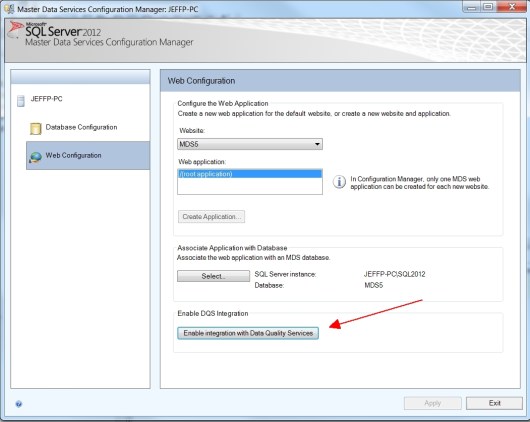
First, let’s run through the typical worst case scenario. After installing MDS, the very last step is that long button which enables DQS Integration.

Clicking this button, the install program looks in the same SQL Server Instance which you just installed MDS into and searches for a database called DQS_MAIN. If you haven’t yet installed DQS, it will fail and you will get the following error message.

If you installed MDS before installing DQS, all hope is not lost. After installing MDS, simply install DQS and then come back into the MDS Configuration screen and enable DQS integration.
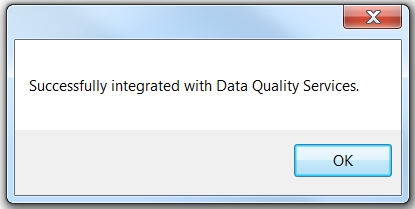
Now when you can click the ‘Enable DQS Integration’ button, you should get a success message.

Ok, so we have both installed and they have been integrated. Now let’s take a look at our new found powers. If we fire up Excel and click on the ‘Master Data’ tab, you can see that we now have access to the Data Quality tools as well!

With these tools, we can now utilize the matching rules which we can setup in DQS.

Without integrating DQS with MDS, you can see here in this ‘before’ screenshot that the DQS tools are not available.

(If you don’t have the MDS Add-in for excel, you can download it here: http://go.microsoft.com/fwlink/?LinkId=219530)

Here is a video tutorial on how to use the DQS tools with MDS:
http://msdn.microsoft.com/en-us/sqlserver/hh828790.aspx

Here is a link which describes using Data Quality Matching in the MDS Add-in for Excel:
http://msdn.microsoft.com/en-us/library/hh548681.aspx

Add Excel Chart Percentage Differences

This isn’t exactly a SQL Server post, but it does fall in the realm of BI and analytics so I figured it was fair game. In this post, I will show you how to put some logic into your Excel column charts by adding a percent difference between data values. In our example we have some annual numbers and we want to know the annual growth percent. To accomplish this, we will create a chart like the one here.

Organize your data with the years across the top, and your numeric value directly below. On the 3rd line, create a new value called ‘% Change’. The first year % change will be 0, but the rest of the years will be Current Year / Last Year.

Drag your formula across all of the columns. Then highlight all 3 rows of data and click on Insert and insert a 2-D Column chart. One word of caution here is that it has to be a 2-D chart, and can’t be 3-D.

Now we have a new chart added. However, as you can see some of our numbers are very large, and some are very small. The ‘% Change’ numbers are hardly visible.

We will correct this by changing the ‘% Change’ on data to be on its own axis. To do this click once on the tallest blue bar on the right, wait about 1 second and then click it again. This should highlight just that one blue bar. Next, click the right arrow button on your keyboard and you should have the red values (% Change) highlighted. This is the best way to highlight this data series as the numbers are so small.

Now when the data series is highlighted, carefully hover your mouse over the data series until you see the pop-up window say ‘Series % Change…’. Next, right click and select the last option which is Format Data Series.

On this screen we want to select Plot Series on Secondary Axis and then click close.

Next, while the data series is still highlighted click on the Design tab, Change Chart Type, and select the first line chart option.

Now you can right click the data series and do some formatting such as Add Data Labels, and changing the Data Label Number type to Percentage. You can also right click and choose Format Axis on our new axis, and also set the Number to Percentage. Now you have a nice chart and can easily tell the annual growth percentage!

Use JavaScript to open a second SSRS report window

Within SSRS reports, you may sometimes want to show more details for a given record but don’t necessarily want to add it to the existing report or go to another report. Here is a neat solution. You can add JavaScript to your report and have a second report window pop up with the details! Let’s take a look at how we can do this. First you will need to create two reports; your main report and the second report that will show up on the pop up window with details.

On the first report you will need to decide where you want your user to click to pull up the second report. In our example here, we have a reservation list. We will be clicking on the Customer Name to get more details about that customer.

Report designer

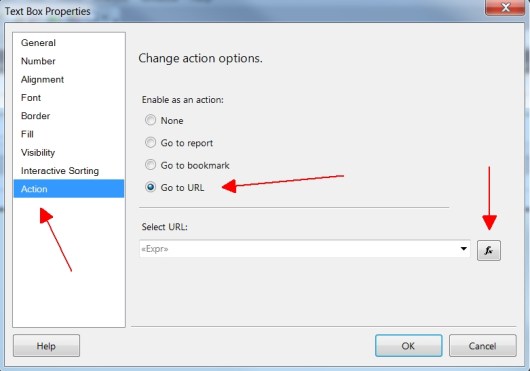
Next, we will go to the text box properties and then the Action tab. Select ‘Go to URL’ and then click on the expression button.

Text box action tab

Here is where the magic happens. Using SSRS URL Access, we will send commands to the report server and pull up the second report.

Javascript to open a second window

Here is the code we will use for our reports.

="javascript:void window.open(" &"'"& Globals!ReportServerUrl &"/Pages/ReportViewer.aspx?"
&Globals!ReportFolder &"/Customer+Details&rc:Parameters=False
&CustomerID="& Fields!CustomerID.Value &"
','CustomerDetailsWindow','left=370,top=180,width=940,height=300,status=no,menubar=no,scrollbars=no,location=yes'" & ")"

The first line uses a global variable to populate the report server URL and report viewer. The second line puts in a report folder value, and specifies a report name. Our pop up report is called ‘Customer Details.rdl’, but as you can see here we just specify the report name without the .rdl at the end. We will also pass in a parameter option of ‘Parameters=False’ on the second line. This will turn off the parameter drop down box on the controls. We don’t want our report to give the option of selecting a different customer. If you need to pass more than one parameter, simply copy the third line and paste the copy below line three and modify with the new parameter values. In our example, the third line specifies the parameter name (CustomerID) on the second report, and the value from the main report. For this report, we will be passing in (Fields!CustomerID.Value). Finally, on the last line we specify some additional properties that we want the pop up window to have such as the width and height.

We only use one URL parameter value (Parameters=False) in our example. However, there are quite a few more that can help customize your secondary report window. To find more information about parameter values, follow this link:

If you are having a hard time getting your report to work, I suggest first going to your report server URL (http://YourServer/reportserver), browse to your report and try setting your SSRS parameter strings to make sure you have the correct syntax. You should then be able to pull it apart and insert it into your JavaScript expression.

Here is a screenshot of our final solution. When we click on the Customer Name, we get a second report with additional customer information.

Two report windows open

More information on using SSRS URL Access can be found here:
http://msdn.microsoft.com/en-us/library/ms153586

SSRS Page Break After X Number of Records

In SQL Server Reporting Services you can add a page break after a desired amount of records. Here is how you do it.

1. Add a new Row Group and give it a name.
In our example we named our group:
LimitNumberOfRowsPerPageGroup

SSRS Row Group

2. Go to the properties of the Row Group.

SSRS Row Group Properties

3. Use the following expression to group the row on:
=Floor((RowNumber(Nothing) – 1) / 250)
In this example, 250 is the number of records we want per page.

SSRS Row Group Expression

4. On the Page Breaks tab, check the following:
‘Between each instance of a group’
‘Also at the end of a group’

Page Breaks Tab

Go ahead and run the report.
You should now have 250 records per page.

Using RowVersion and Timestamp

If you do any kind of batch ETL processing, it can be very useful to know if any records in your database have been updated. One way to do this is to use a rowversion or timestamp column in your tables.

Books online has a good definition for timestamp:
Each database has a counter that is incremented for each insert or update operation that is performed on a table that contains a timestamp column within the database.
This counter is the database timestamp. This tracks a relative time within a database, not an actual time that can be associated with a clock. A table can have only one timestamp column. This property makes a timestamp column a poor candidate for keys, especially primary keys. Any update made to the row changes the timestamp value and, therefore, changes the key value.

Below are a couple of examples I came up with to demonstrate their potential. The first set uses timestamp. The second set uses rowversion. However, rowversion still uses timestamp behind the scenes so it’s not much different.


---------------------------------------
-- TIMESTAMP
---------------------------------------
-- 1. create a test table and put a few records in it
CREATE TABLE Test_TimeStamp (RowID int PRIMARY KEY, Value int, TS timestamp);
GO
INSERT INTO Test_TimeStamp (RowID, Value) VALUES (1, 0);
GO
INSERT INTO Test_TimeStamp (RowID, Value) VALUES (2, 0);
GO
INSERT INTO Test_TimeStamp (RowID, Value) VALUES (3, 0);
GO

-- 2. store the latest timestamp that is currently in the table
DECLARE @TS AS timestamp;
SET @TS = (SELECT @@DBTS AS TS)
--SELECT @TS

-- update a couple of records
UPDATE Test_TimeStamp SET Value=2 WHERE RowID=1
UPDATE Test_TimeStamp SET Value=3 WHERE RowID=2

-- show all of the records that have changed
SELECT * FROM Test_TimeStamp WHERE TS > @TS

-- show the new latest timestamp stored in the table
SELECT @@DBTS AS TS

-- 3. re-run step 2 and see the changes again and again
--DROP TABLE Test_TimeStamp
--GO

---------------------------------------
-- ROWVERSION
---------------------------------------
-- 1. create a test table and put a few records in it
CREATE TABLE Test_RowVersion (RowID int PRIMARY KEY, Value int, RV rowversion);
GO
INSERT INTO Test_RowVersion (RowID, Value) VALUES (1, 0);
GO
INSERT INTO Test_RowVersion (RowID, Value) VALUES (2, 0);
GO
INSERT INTO Test_RowVersion (RowID, Value) VALUES (3, 0);
GO

-- 2. store the latest timestamp that is currently in the table
DECLARE @TS AS timestamp;
SET @TS = (SELECT @@DBTS AS TS)
--SELECT @TS

-- update a couple of records
UPDATE Test_RowVersion SET Value=2 WHERE RowID=1
UPDATE Test_RowVersion SET Value=3 WHERE RowID=2

-- show all of the records that have changed
SELECT * FROM Test_RowVersion WHERE RV > @TS

-- show the new latest timestamp stored in the table
SELECT @@DBTS AS TS

-- 3. re-run step 2 and see the changes again and again
--DROP TABLE Test_RowVersion
--GO

SSRS Page 1 of 2?

Starting in reporting services 2008 there is a new feature called On Demand processing.
http://msdn.microsoft.com/en-us/library/bb630400(v=SQL.100).aspx#OndemandProcessing

With this feature reports may be rendered only one page at a time to speed up processing. One drawback to this can be seen on large reports. On your action bar, you may see page 1 of 2?
Here is an example:

One trick to avoid this is to add a textbox in your report header or footer. On the properties of the textbox, set Hidden=True. For the expressoin of the textbox, set it to =Globals!TotalPages.
Now when the report runs, it figures out the total number of pages to put into this textbox. And as a result, it also puts the correct number in your action bar!

Using Images as links in SSRS

In SSRS you can create drill-through links to other reports from textboxes. But if you really want to jazz things up you could instead add an Image and make it clickable. One catch is that you cannot associate an Image to a dataset to pass down values. How do we overcome this you ask?

There are two methods we can use:
1) If you used parameters in your report, you can easily add these as hyperlink parameters.

2) The trickier one is non-parameter values. To pass down a value from a dataset you need to have the
value available somewhere on your report. If your value may be different for each row, you will need to display it somewhere on your reports’ result set. Then on the Image, Action tab add another parameter and give it a name.

Image Properties and Parameters

For the expression value you would enter =ReportItems!Textbox126.value (or whatever the field name may be on your table)

Image Properties and Parameters

Dynamic MDX

I recently wrote some dynamic MDX queries for my SSRS reports. I didn’t have much trouble until I ran into a StrToMember function that needed a double quote at the beginning and end. Hmm.. how to overcome that. Turns out you can use some VB .Net characters.

Here is a list of some common ones.
chr(39) = single quote
chr(34) = double quote
chr(10) = new line
chr(13) = carriage return

so for my example I had the following:
STRTOMEMBER("[Time Periods].[Fiscal Month Desc].&["+@FromMonth+", "+@FromYear+"]")

After I did some converting, I came up with this:
STRTOMEMBER(" & chr(39) & "[Time Periods].[Fiscal Month Desc].&[" & Parameters!FromMonth.Value & ", " & Parameters!FromYear.Value & "]" & chr(39) & ")